
Acer ProDesigner PE270K
5.0Editor score
Factory Calibrated Delta E Less Than 1
99 Percent Adobe RGB Coverage
Built-In KVM Switch for Two PCs
Choosing the right monitor for Adobe Illustrator requires precision and clarity. Designers need vibrant colors and sharp details to bring vector art to life. A professional display ensures your work looks exactly as intended on every screen.
We analyzed ten top-rated monitors based on color gamut coverage, resolution, and connectivity. Each option supports high fidelity essential for print and digital design. Our comparisons highlight key features like calibration and ergonomic adjustments for productivity.
Each pick showcases distinct strengths tailored to different creative needs and budgets. Prices fluctuate frequently so verify current offers before purchasing. This guide helps you select the perfect display to elevate your illustration workflow today.
5.0Editor score
4.2Editor score

4.0Editor score
As an Amazon Associate we earn from qualifying purchases.
This side-by-side comparison highlights the key specifications and unique features of each monitor. Use this table to quickly evaluate resolution, color accuracy, and connectivity options across all ten models.



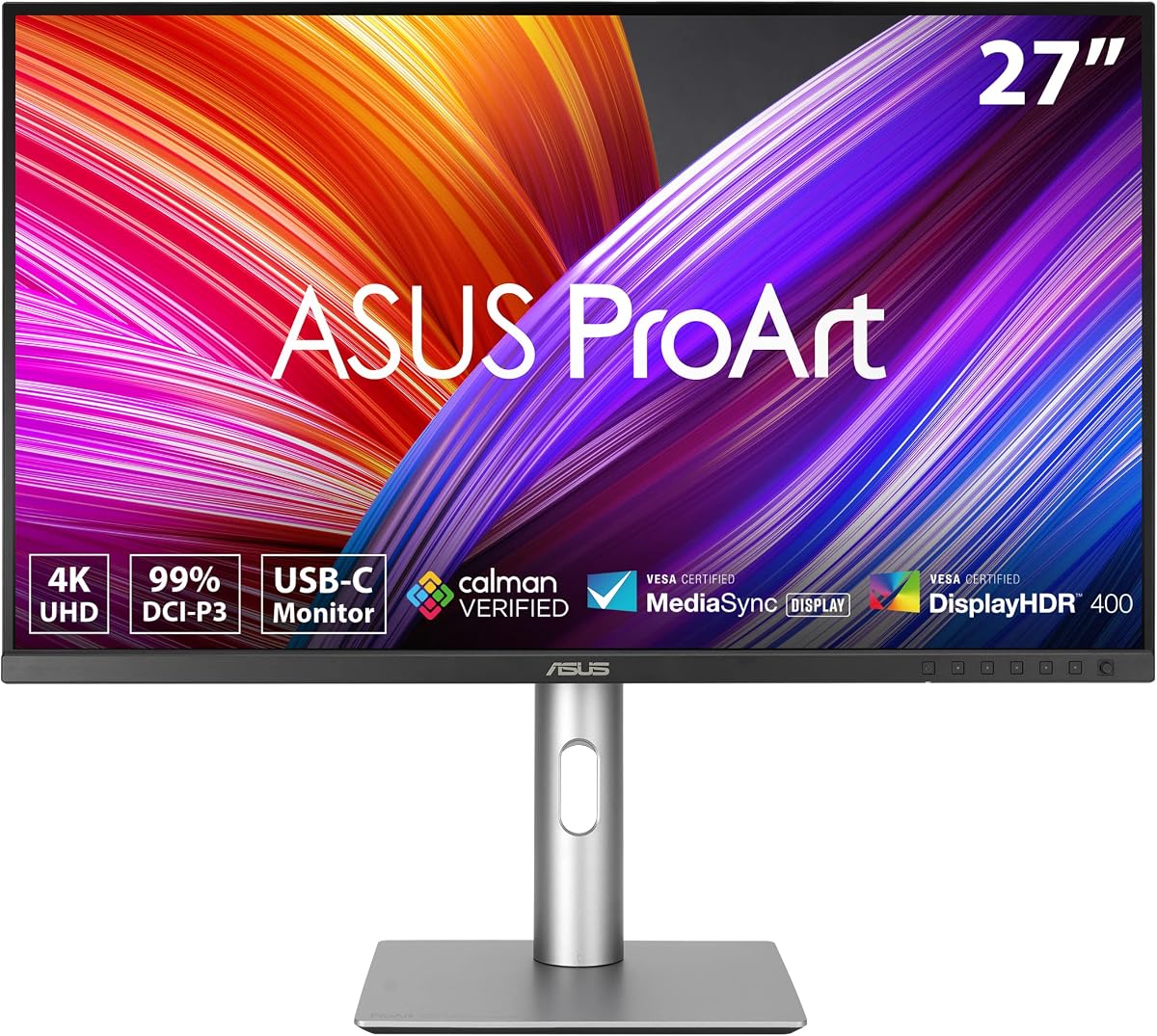
The ASUS ProArt PA279CRV stands out as a top choice for Illustrator users seeking reliable color precision. Its factory calibration ensures Delta E less than 2, making it ideal for professional workflows right out of the box.
We may earn a commission when you buy through this link, at no additional cost to you.
Its 99 percent Adobe RGB coverage matches print requirements while USB-C connectivity simplifies setup with power delivery. The ergonomic design allows for pivot and height adjustments to reduce strain during long design sessions.
While HDR brightness is moderate compared to higher-end panels, the color fidelity remains consistent across the screen. The included software supports further customization for specific color space needs without extra hardware.
Designers needing a balanced mix of performance and value will find this monitor highly effective for vector work. It offers everything required for accurate illustration without requiring additional calibration devices initially.
The wide Adobe RGB coverage ensures print designs match client expectations accurately without guesswork or extra testing phases.
USB-C with power delivery allows a single cable connection for video and charging keeping desks clean and organized efficiently.
We may earn a commission when you buy through this link, at no additional cost to you.
The BenQ PD2732U delivers professional-grade performance with Thunderbolt 4 support ideal for demanding creative environments. Its uniformity calibration ensures brightness consistency across the entire panel which is critical for large illustrations.
We may earn a commission when you buy through this link, at no additional cost to you.
With Pantone validation and 99 percent Adobe RGB coverage, color accuracy is guaranteed for client deliverables. The included wireless hotkey puck allows quick switching between color modes without navigating on-screen menus manually.
While the price reflects its premium features, the investment pays off in reduced rework and higher visual fidelity. Mac users specifically benefit from the iKeyboard control that syncs volume and brightness with the keyboard.
Creative professionals who need reliable multi-device workflows will appreciate the KVM and daisy chain capabilities. This monitor sets a high standard for color-critical work across various platforms and software applications.
The Mac mode matches screen colors precisely ensuring consistency when viewing work on different Apple devices.
Built-in KVM switch lets you control two computers with one keyboard and mouse reducing clutter and saving time.
We may earn a commission when you buy through this link, at no additional cost to you.
The Acer ProDesigner PE270K offers exceptional value with professional specs typically reserved for expensive models. Its factory calibration reaches Delta E less than 1 providing unmatched precision for detail-oriented vector illustrations on a budget.
We may earn a commission when you buy through this link, at no additional cost to you.
Users can toggle between 4K color mode and 1080p speed mode depending on the task. This flexibility helps maintain high accuracy when editing while allowing faster performance during preview or animation work.
Despite its affordable price, it includes essential connectivity like USB-C with power delivery and daisy chain support. The Smart Dial accessory makes adjusting settings intuitive without digging into complex on-screen menus constantly.
Beginners and freelancers looking for high fidelity without breaking the bank will find this monitor ideal. It balances performance features well to support professional workflows while keeping costs manageable for growing studios.
Toggle between 4K color accuracy and 1080p speed mode instantly to match your current workflow requirements efficiently.
The included Smart Dial allows quick adjustments to brightness and color spaces without reaching behind the monitor panel.
We may earn a commission when you buy through this link, at no additional cost to you.
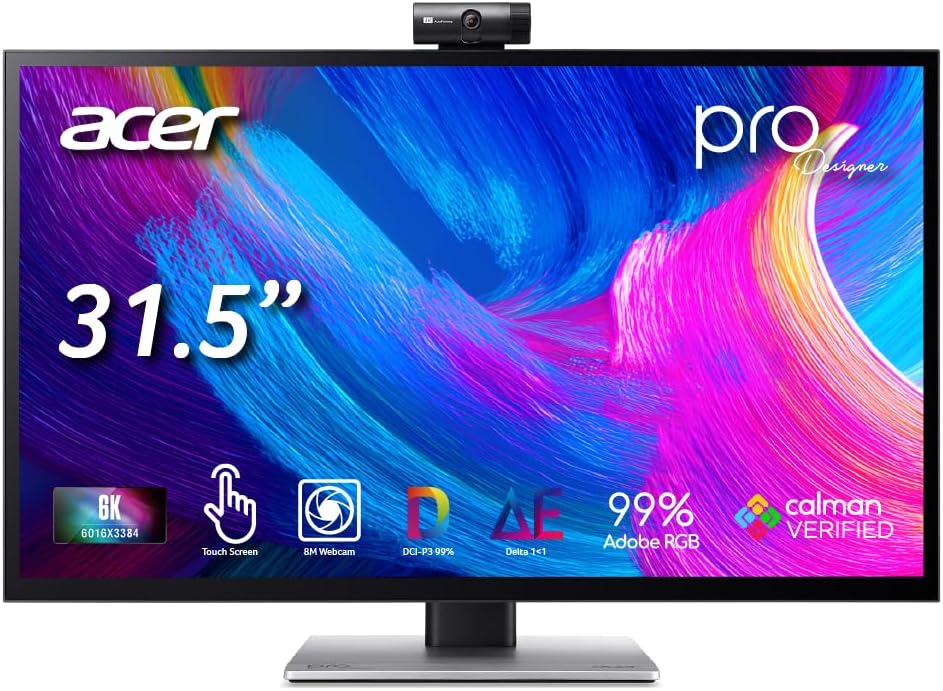
The Acer ProDesigner PE320QXT introduces direct touch capabilities for a more intuitive drawing experience in Illustrator. Its 6K resolution allows intricate details to be viewed clearly without constant zooming during complex projects.
We may earn a commission when you buy through this link, at no additional cost to you.
Color accuracy is maintained with 99 percent Adobe RGB coverage ensuring print readiness. The included stylus support allows natural sketching directly on the screen which can speed up the initial design phase significantly.
While touch screens can introduce glare, the QD-IPS panel balances brightness and color well. The built-in webcam eliminates the need for external cameras making client reviews seamless from one central workspace.
Illustrators who prefer drawing by hand will appreciate the seamless integration of sketching and editing. This monitor bridges the gap between traditional tablet work and high-resolution screen editing effectively.
Touch support allows you to sketch and annotate directly on the canvas reducing the friction of tablet-to-screen mapping.
The built-in 8MP webcam and mic array make client calls easier without cluttering the desk with extra hardware.
We may earn a commission when you buy through this link, at no additional cost to you.
This ASUS ROG model leverages OLED technology for stunning contrast and vibrant colors that benefit vector art. The glossy finish improves text sharpness and color depth making UI elements crisp during detailed design work.
We may earn a commission when you buy through this link, at no additional cost to you.
While marketed for gaming, the color specs like 99 percent DCI-P3 meet professional standards for color accuracy. The fast response time ensures fluid scrolling and navigation which reduces lag during multitasking environments.
Designers must be mindful of OLED burn-in risks but protection features help mitigate this issue. The included software offers controls to manage static elements and preserve panel longevity over extended use.
Creative users seeking a high-contrast experience for digital illustration will enjoy the vivid blacks and brightness. Just ensure you rotate static assets or use screen savers to maintain image health long-term.
OLED technology provides perfect blacks and infinite contrast which makes colors pop more vividly on screen.
The fast refresh rate ensures menus and panels update smoothly without lag for a responsive user experience.
We may earn a commission when you buy through this link, at no additional cost to you.
The ASUS PA279CRV-P mirrors the features of the standard ProArt model with specific compliance benefits. It offers 5-year warranty coverage which provides significant peace of mind for enterprise buyers needing reliability.
We may earn a commission when you buy through this link, at no additional cost to you.
Color accuracy remains top-tier with Calman Verified results ensuring professional standards are met. The slim profile helps maximize desk space while maintaining a professional aesthetic in any studio environment.
While it lacks some advanced connectivity found in newer models, the core performance for Illustrator is solid. The TAA compliance makes it a valid option for government or institutional contracts requiring specific procurement rules.
Organizations needing compliant hardware with reliable color performance will find this model a safe choice. It balances essential features with regulatory requirements for broad usability across various sectors and setups.
The extended five-year warranty ensures long-term support which is crucial for businesses minimizing downtime costs.
TAA compliance allows government and institutional buyers to acquire this monitor under specific trade agreement rules.
We may earn a commission when you buy through this link, at no additional cost to you.
The ASUS ProArt PA27JCV offers a 5K resolution that sharpens text and vector details significantly. This high pixel density ensures fine lines appear smooth and crisp even when zoomed in for detailed edits.
We may earn a commission when you buy through this link, at no additional cost to you.
Ambient light sensors adjust brightness automatically to reduce eye strain during long work sessions. The Auto KVM feature allows easy switching between two connected laptops without physically changing cables constantly.
Despite strong specs, user feedback notes mixed performance compared to other ProArt variants. The 5K resolution demands a powerful GPU which some users might find limiting for general tasks.
Mac users prioritizing resolution clarity will benefit from the high pixel count. Ensure your system supports the output before purchase to fully utilize the display potential effectively.
The 5K resolution ensures that every vector anchor point and fine line appears distinct without anti-aliasing blur.
Ambient light sensors adjust the screen brightness automatically to match the room lighting for comfort.
We may earn a commission when you buy through this link, at no additional cost to you.
The Samsung Odyssey OLED G6 combines QD-OLED tech with high brightness for vibrant visuals. Its Pantone validation ensures color consistency which is valuable for digital art requiring accurate hue reproduction.
We may earn a commission when you buy through this link, at no additional cost to you.
The glare-free technology helps maintain visibility in bright environments. High refresh rates make scrolling and cursor movement incredibly smooth during intensive design workflows without visual stutter.
While built for gaming, the panel quality supports creative needs well. However, specific color mode presets may not match professional calibrations out of the box.
Creative users who need high refresh performance for animation or video preview will find this model suitable. Just check the color presets against your specific project needs before committing.
QD-OLED delivers high brightness and vivid colors that make artwork look lifelike and vibrant on screen.
The high refresh rate ensures smooth scrolling through long canvases or timelines without motion blur.
We may earn a commission when you buy through this link, at no additional cost to you.
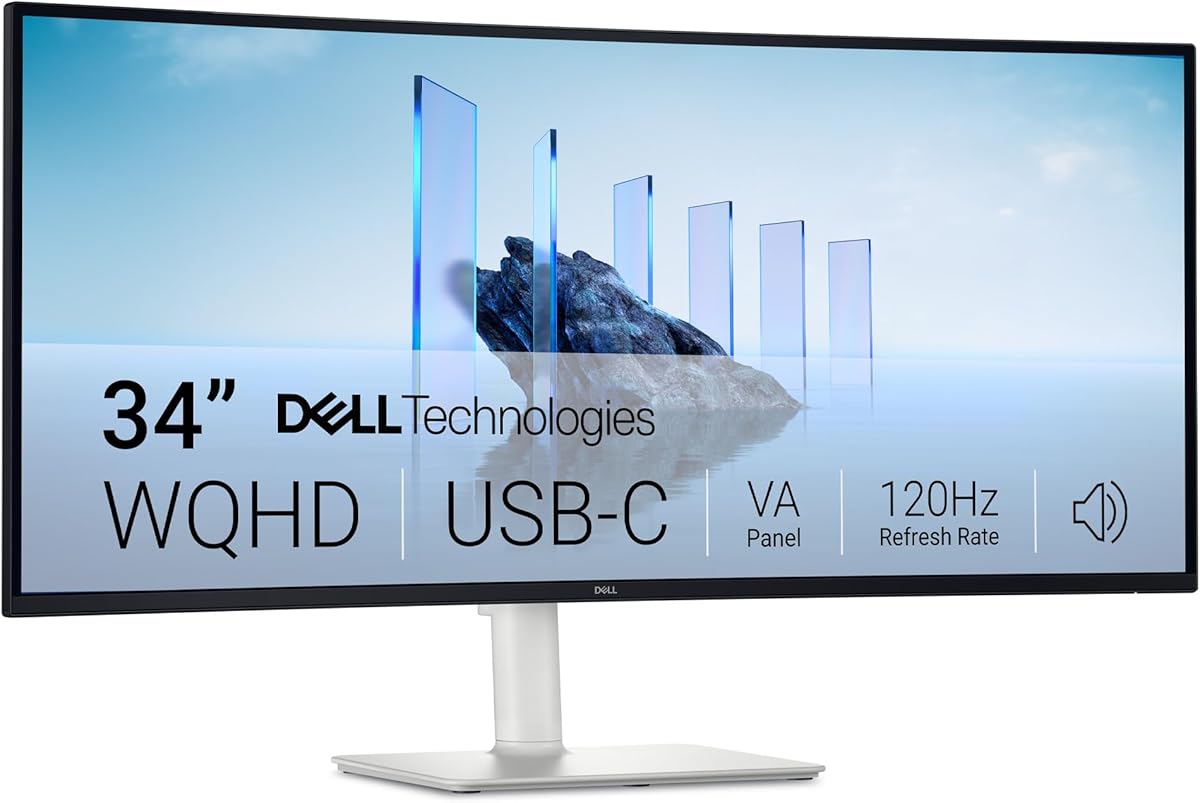
This Dell ultra-wide monitor offers a spacious canvas ideal for arranging multiple windows side-by-side. The WQHD resolution provides decent detail for general illustration work and multitasking.
We may earn a commission when you buy through this link, at no additional cost to you.
High contrast ratios deliver deep blacks which can improve visual depth. USB-C connectivity with power delivery simplifies setup for laptops while maintaining a clean workspace environment.
VA panels can suffer from slight color shift at viewing angles. This should be considered if clients review work from multiple positions around the desk.
Designers who need extra horizontal real estate for tools and palettes will appreciate the ultra-wide format. It balances cost and space effectively for varied workflow styles.
The wide aspect ratio allows you to keep toolbars visible while working on the main canvas without overlapping.
USB-C connects your laptop and charges it with a single cable reducing cable clutter on your desk.
We may earn a commission when you buy through this link, at no additional cost to you.
The Dell 24 Plus is a compact solution for smaller desks or budget setups. Its FHD resolution suffices for basic layout work and learning Illustrator basics without overspending.
We may earn a commission when you buy through this link, at no additional cost to you.
The adjustable stand allows proper ergonomics despite the lower cost. Integrated speakers provide simple audio without needing external hardware for quick review sessions.
While not ideal for professional print work due to resolution limits, it serves entry-level needs well. The fast refresh rate ensures fluid navigation even when scaling large projects.
Beginners or students with limited space will find this a practical starting point. It offers essential ergonomic features at an accessible price for new creative professionals.
The small 23.8-inch footprint fits easily on cramped desks while still providing adequate workspace for simple tasks.
Adjustable tilt and height let you find the right viewing angle to maintain good posture during work.
We may earn a commission when you buy through this link, at no additional cost to you.
Selecting the right monitor requires balancing color accuracy, resolution, and connectivity. This guide outlines the key factors to consider for professional illustration workflows.
Color accuracy ensures your designs look consistent across devices. Look for monitors with wide gamut coverage like Adobe RGB or DCI-P3 and factory calibration with Delta E under 2 for precision. This prevents unexpected shifts when printing or publishing work.
Prioritize monitors that offer verified calibration and wide gamut coverage to maintain consistent color fidelity.
Resolution impacts how sharp your vector lines and details appear. A 4K resolution on a 27-inch screen provides excellent clarity for intricate work. Larger screens offer more workspace but ensure the pixel density remains high enough for detail.
Opt for 4K resolution on a 27-inch display for the best balance of detail and workspace efficiency.
Modern workflows often require seamless connection to laptops and desktops. USB-C with power delivery simplifies setup by transmitting video and power through one cable. HDMI and DisplayPort support compatibility with older systems and multi-monitor setups.
Ensure the monitor supports USB-C with power delivery to reduce cable clutter and streamline your workspace.
Long design sessions require comfortable viewing angles. A stand that adjusts in height, tilt, swivel, and pivot helps prevent strain. Portrait mode support is also useful for reviewing vertical designs or documents.
Choose a model with full ergonomic adjustments to maintain comfort during extended working hours.
While not critical for static design, higher refresh rates improve cursor smoothness and scrolling. This reduces visual fatigue during fast navigation. Look for at least 60Hz but higher rates add fluidity.
Select a monitor with at least 60Hz refresh rate to ensure smooth cursor movement and scrolling.
Professional tools should come with robust warranty coverage. Look for at least three years plus extensions to protect against hardware failure. Manufacturer support ensures timely assistance if issues arise.
Verify warranty terms to ensure reliable support for your investment over time.
IPS panels are standard for accurate colors and viewing angles. OLED panels offer higher contrast but may carry burn-in risks. VA panels provide high contrast but may shift color at angles.
Prioritize IPS panels for consistent color performance across wide viewing angles.
Sufficient brightness ensures visibility in varied lighting. HDR support helps if you work with video content but is less critical for vector art. Aim for at least 300 nits for comfortable viewing.
Look for a brightness of at least 300 nits to ensure clear visibility in most lighting conditions.
Calibrate your monitor regularly using built-in tools or external devices to maintain color accuracy. This ensures your designs match the intended output across different environments.
Clean the screen with a soft microfiber cloth and avoid harsh chemicals to prevent damage. Keeping the surface clean reduces glare and maintains visual clarity.
Adjust brightness and color temperature based on ambient light to reduce eye strain. Using dark modes in Illustrator can also help when working long hours.
Adobe RGB covers a wider range of colors than sRGB, especially in greens and cyans. This ensures your designs print accurately without color shifting to duller hues.
A 4K monitor helps visualize fine details clearly without upscaling. While not strictly necessary, it improves precision for intricate illustrations and large canvas work.
Use a USB-C or Thunderbolt cable to connect your Mac directly. This transmits video and power in one cable simplifying your desk setup efficiently.
IPS panels offer stable color accuracy without burn-in risks. OLED provides better contrast but requires precautions for static elements in design software.
Delta E measures color difference between display and target values. Lower values like below 2 mean minimal visible difference ensuring accurate professional color work.
Gaming monitors can work if they have good color specs and calibration. However, professional monitors offer better tools for accuracy and uniformity for serious work.
Choosing the right monitor elevates your illustration workflow with precision. Our top picks offer diverse features to meet various professional needs and budgets effectively.
Prioritize color accuracy and resolution for the best experience. A balance of ergonomic design ensures comfort during long creative sessions.
Always check current availability and pricing before purchasing to secure the best deal for your creative workspace.