
ASUS ProArt PA278QV
4.6Editor score
100% sRGB color gamut
27 inch QHD display
Calman Verified accuracy
This guide compares the top 10 monitors for Premiere Pro video editing to help you find accurate color, resolution, and connectivity for professional workflows.
Choosing the right monitor for Premiere Pro video editing is critical for achieving accurate color grading and efficient workflow. Professional editors need displays with high resolution, wide color gamuts, and reliable connectivity to handle demanding video projects without lag or distortion.
We analyzed ten top-rated monitors based on color accuracy, screen size, resolution, and connectivity options like USB-C and Thunderbolt. Our selection includes models from ASUS ProArt, MSI, and LG that meet industry standards for video production and creative design tasks.
Each pick highlights key features, pros, and cons to help you decide based on your budget and technical needs. Please note that prices and availability can change frequently, so check the latest listings before making your final purchase decision.
4.6Editor score
4.2Editor score

5.0Editor score
The following table provides a side-by-side comparison of all ten monitors selected for their performance in video editing tasks, focusing on resolution, color accuracy, and connectivity features.


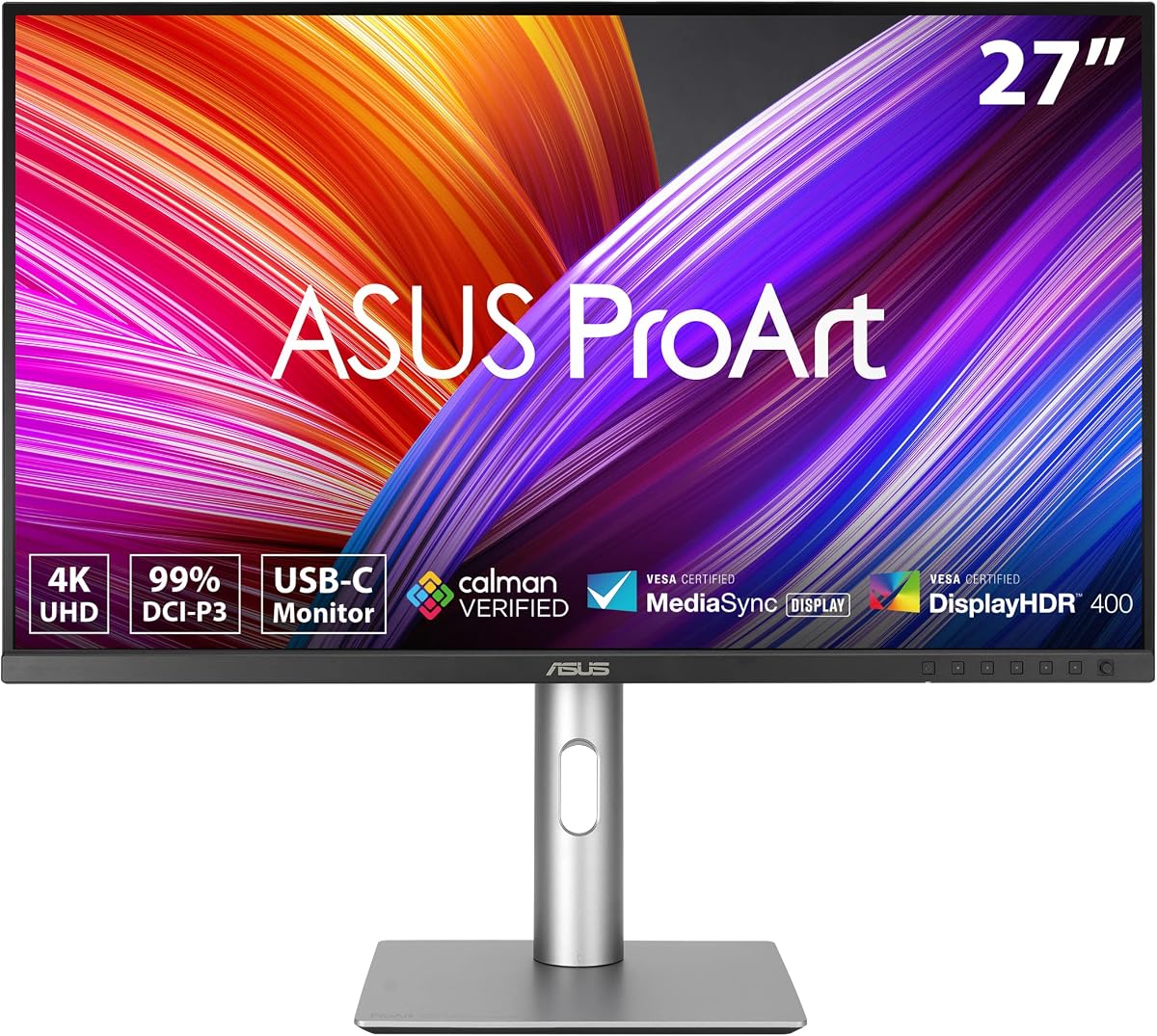
The ASUS ProArt PA278QV stands out as a top choice for video editors seeking professional color accuracy without breaking the bank. With a 4.6 rating, it delivers reliable performance for Premiere Pro workflows through its factory calibrated IPS panel and extensive connectivity.
We may earn a commission when you buy through this link, at no additional cost to you.
Its Calman Verified color accuracy ensures Delta E values under 2, meaning colors match industry standards closely. The 100% sRGB and Rec. 709 coverage is vital for video editing to ensure projects look correct across different displays and media platforms.
While it lacks Thunderbolt, the inclusion of DisplayPort, HDMI, and Mini DP plus a USB hub simplifies desk setups. The ergonomic stand allows pivot and height adjustments which reduce strain during long editing sessions significantly.
This monitor is ideal for entry-level professionals or students who need reliable color reproduction. The free Adobe Creative Cloud subscription adds extra value for those starting their creative careers or expanding their software toolkit.
Calman Verified calibration ensures your edits match what clients will see on other screens.
Multiple ports including USB hub let you connect cameras, drives, and laptops easily.
We may earn a commission when you buy through this link, at no additional cost to you.
The ASUS ProArt PA32QCV offers a stunning 6K resolution perfect for detailed video editing on Mac systems. Despite a lower rating of 3.9 due to high expectations and price sensitivity, its specs are impressive for professional workflows.
We may earn a commission when you buy through this link, at no additional cost to you.
With 98% DCI-P3 coverage and Thunderbolt 4 connectivity, it handles high-resolution footage smoothly. The MacBook Color Matching preset ensures seamless visual continuity between your laptop and external display which is crucial for color grading consistency.
Features like the Auto KVM switch allow easy toggling between two computers using one keyboard and mouse. The intelligent light sync technology helps maintain color accuracy under varying ambient lighting conditions throughout the day.
This monitor is best for Mac users needing maximum screen real estate and pixel density. While expensive, the productivity gains from 6K clarity and simplified cabling justify the investment for serious editors.
Dedicated color presets match MacBook displays for consistent workflow across devices.
6K resolution provides crisp detail for timelines and effects previews in Premiere Pro.
We may earn a commission when you buy through this link, at no additional cost to you.
The ASUS ProArt PA279CRV combines 4K resolution with exceptional color coverage making it a strong contender for hybrid Mac PC workstations. With a 4.2 rating, it balances performance and value well for creative professionals.
We may earn a commission when you buy through this link, at no additional cost to you.
Factory calibration ensures Delta E is under 2, providing reliable color for grading. The 99% DCI-P3 and 99% Adobe RGB coverage means you see a wide spectrum of colors which is essential for high-end video production.
USB-C connectivity delivers 96W power allowing you to charge your laptop while transferring data. This reduces cable clutter and supports portable editing setups where space and mobility matter significantly.
Ideal for editors who need accurate color and high resolution without the OLED price tag. The daisy-chain feature allows multiple monitors to connect through one port expanding your workspace efficiently.
Wide Adobe RGB and DCI-P3 coverage ensures accurate representation in final outputs.
USB-C delivers enough power to run your laptop without needing a separate charger.
We may earn a commission when you buy through this link, at no additional cost to you.
The MSI PRO MAX 271UPX12G brings OLED technology to video editing with perfect blacks and infinite contrast. Its 5.0 rating reflects high satisfaction among users seeking premium visual fidelity for creative tasks.
We may earn a commission when you buy through this link, at no additional cost to you.
QD-OLED technology delivers vibrant colors and deep blacks which make grading dark scenes easier. The 120Hz refresh rate ensures smooth playback even at high resolutions reducing motion blur during scrubbing.
With △E under 2, the monitor maintains precise color fidelity suitable for professional work. Built-in speakers and height adjustable stand add convenience without sacrificing the viewing experience for long durations.
This monitor suits editors prioritizing visual quality over longevity concerns. While OLED risk burn-in the high rating suggests robust management features make it viable for careful users needing top tier display quality.
Pixel level lighting allows for precise adjustments in shadows without affecting highlights.
120Hz refresh reduces motion blur making timeline scrubbing feel fluid and responsive.
We may earn a commission when you buy through this link, at no additional cost to you.
The ASUS ProArt PA278CGRV offers a smooth viewing experience with a 144Hz refresh rate beneficial for fluid playback. Rated 4.3, it combines professional color accuracy with features that enhance multitasking and comfort.
We may earn a commission when you buy through this link, at no additional cost to you.
With 97% DCI-P3 and Calman Verified accuracy, colors remain true to source files. The variable refresh rate ensures smooth visual transitions even during complex rendering tasks or heavy timeline manipulation in editing software.
Auto KVM allows easy switching between connected PCs using one keyboard and mouse. This saves desk space and simplifies workflow for editors working with multiple machines or virtual machines simultaneously.
Recommended for editors who value motion clarity and connectivity. The 1440p resolution balances clarity with performance making it a solid choice for general editing tasks without extreme resolution demands.
High refresh rates make scrolling through timelines and playback smoother than standard displays.
KVM switch lets you control two computers seamlessly without physical cable swapping.
We may earn a commission when you buy through this link, at no additional cost to you.
The ASUS ProArt PA248QV provides reliable color accuracy in a compact 24 inch form factor. Rated 4.6, it is an excellent choice for users with limited desk space or secondary editing stations.
We may earn a commission when you buy through this link, at no additional cost to you.
It features 100% sRGB coverage and factory calibration ensuring colors are accurate. The WUXGA resolution offers slightly more vertical space than standard 1080p which helps view more of your timeline at once.
Ports like DisplayPort and HDMI provide flexibility for connecting laptops or desktops. The anti-glare coating reduces reflections which protects your eyes during long editing sessions under bright lighting.
Best for students or casual editors needing a backup screen. While not 4K, its color accuracy ensures your secondary monitor matches primary outputs effectively for consistent editing.
Smaller size fits easily on crowded desks while maintaining professional color standards.
Ideal for reference monitors or audio waveform displays alongside your main editing screen.
We may earn a commission when you buy through this link, at no additional cost to you.
The LG 27UP850K-W offers a balanced mix of features for general video editing and content consumption. With a 4.4 rating, it appeals to users wanting solid 4K performance without paying for specialized creative features.
We may earn a commission when you buy through this link, at no additional cost to you.
It covers 95% DCI-P3 which is sufficient for many projects. The USB-C port delivers 90W power allowing you to power a laptop while connecting to the display via a single cable.
Waves MaxxAudio speakers provide decent sound quality reducing the need for external speakers. The ergonomic stand allows pivot and tilt adjustments ensuring comfortable viewing angles for long periods.
This monitor is ideal for home offices needing a versatile display. While not specialized like ProArt models it provides good image quality and connectivity for everyday editing work.
Built-in speakers save space and allow quick audio checks without external devices.
Works well for both video editing and general productivity tasks at home.
We may earn a commission when you buy through this link, at no additional cost to you.
The ASUS ProArt PA27JCV delivers stunning 5K resolution ideal for Mac users needing extreme detail. Rated 3.6, it offers high-end specs but faces mixed feedback likely due to price sensitivity and compatibility expectations.
We may earn a commission when you buy through this link, at no additional cost to you.
With 99% DCI-P3 and factory calibration, it ensures accurate color reproduction. The intelligent brightness adjustment uses sensors to adapt display settings to ambient light keeping color temperature consistent.
Auto KVM functionality allows switching between laptops easily with one keyboard and mouse. USB-C connectivity handles data transfer and power delivery simplifying cable management on your desk significantly.
Best suited for professionals requiring 5K resolution for intricate detail work. Despite a lower rating, the hardware specs make it a powerful tool for Mac-centric video editing workflows.
Higher pixel density provides sharper text and images for precision editing work.
Sensors adjust brightness automatically saving you manual tweaking during changing light.
We may earn a commission when you buy through this link, at no additional cost to you.
The ASUS ProArt PA27UCDMR combines 4K OLED with a 240Hz refresh rate creating a visual experience unmatched for smoothness. Rated 3.8, it appeals to power users prioritizing performance and visual fidelity over cost.
We may earn a commission when you buy through this link, at no additional cost to you.
With 1000 nits peak brightness and VESA HDR True Black certification, it handles HDR content effectively. The 240Hz rate ensures zero motion blur making scrubbing through high frame rate footage effortless.
Thunderbolt 4 connectivity supports up to 96W power delivery and daisy-chaining. Wide color coverage including Rec. 2020 ensures future-proofing for advanced video production standards.
Ideal for high-end studios needing maximum performance. Its price reflects its niche positioning making it less common but powerful for specific high-frame-rate editing requirements.
240Hz refresh ensures incredibly fluid motion handling even in complex editing workflows.
Peak brightness and true blacks deliver accurate HDR previews for high-end projects.
We may earn a commission when you buy through this link, at no additional cost to you.
The ASUS ProArt PA278CV offers excellent value for entry-level professionals needing accurate color. Rated 4.4, it provides factory calibrated IPS quality and reliable connectivity without the premium price of higher-end models.
We may earn a commission when you buy through this link, at no additional cost to you.
With 100% sRGB and Delta E under 2, it ensures color consistency. USB-C delivers 65W power which is enough for most laptops keeping the desk tidy with minimal cables.
Daisy-chain support allows connecting multiple monitors easily if you expand your setup later. The 90-degree pivot lets you rotate the screen vertically for coding or reading text documents comfortably.
This monitor is a strong choice for freelancers starting their careers. It balances cost with essential features making it a practical first step into professional color accurate monitoring.
Professional grade calibration at a price point accessible to students and startups.
Daisy-chain capabilities allow adding more screens later without extra controller hubs.
We may earn a commission when you buy through this link, at no additional cost to you.
Selecting the right monitor for video editing requires balancing resolution, color accuracy, and connectivity with your budget and workflow needs.
Resolution dictates how much detail you can see in your timeline and preview window. 4K monitors are increasingly standard for HD video workflows as they provide sharper images and more screen real estate. Higher pixel density ensures that text and timelines are crisp reducing eye strain.
Prioritize 4K if you work with high-resolution footage or need to see multiple panels at once.
Color accuracy is paramount for video editing to ensure your final product looks correct on all devices. Look for monitors with high sRGB and DCI-P3 coverage since these match video industry standards. Calibration ensures the display outputs accurate colors without drift.
Check for Delta E values under 2 and factory calibration to minimize manual tweaking.
Connectivity impacts how easily you can connect your laptop or PC. USB-C is essential for modern workflows as it handles video, data, and power over one cable. Thunderbolt offers faster data speeds and daisy-chaining for multi-monitor setups.
Ensure the monitor has ports compatible with your devices to avoid needing dongles.
Refresh rate determines how smoothly motion appears on screen. While 60Hz is common for editing, higher refresh rates like 120Hz or 240Hz reduce motion blur making playback smoother. This is particularly useful when scrubbing through footage.
Consider higher refresh rates if you work with high frame rate content or want smoother timelines.
Panel type affects color reproduction and contrast. IPS panels offer wide viewing angles and consistent colors which are ideal for editing. OLED provides perfect blacks and infinite contrast but carries a risk of burn-in over time.
Choose IPS for reliable longevity or OLED if you prioritize contrast and deep blacks.
Editing sessions can last hours so comfort is critical. Look for stands that allow height, tilt, pivot, and swivel adjustments. Vertical pivot is useful for viewing timelines or code. Anti-glare coatings help reduce reflections and eye strain.
Invest in an ergonomic stand to maintain posture and reduce fatigue.
Some monitors have specific optimizations for Mac users like color matching presets. Mac displays often require Thunderbolt support for full functionality. Ensure your monitor supports the color profiles and resolution scaling your OS uses.
Verify compatibility with your specific operating system to avoid scaling issues.
Professional monitors often come with extended warranties to protect your investment. Look for options covering dead pixels and color calibration services. Good support ensures you can resolve issues quickly without disrupting your workflow.
Check warranty terms and registration requirements to ensure you get full coverage.
Start by calibrating your monitor using hardware tools or software provided by the manufacturer. This ensures the colors you see match your final output. Most professional monitors come with calibration reports that you should review.
Clean the screen regularly using a microfiber cloth to avoid scratches. Avoid harsh chemicals or abrasive materials that might damage the coating. Proper cleaning maintains image clarity and extends the lifespan of the display.
Adjust the stand to eye level to prevent neck strain during long sessions. Use the pivot and tilt features to find comfortable angles. Proper ergonomics will reduce fatigue and improve your productivity over time.
For most video editing, 4K resolution is ideal as it matches high definition standards and provides enough detail for timeline work. If you work with 8K footage or need extensive multitasking, higher resolution may be beneficial. However, 1440p can suffice for lighter editing tasks on a budget.
While 60Hz is sufficient for standard editing, higher refresh rates like 120Hz reduce motion blur making playback and scrubbing smoother. This helps when working with high frame rate content. If you prioritize fluid visuals, a higher refresh rate is a worthwhile upgrade.
USB-C is highly beneficial because it supports video, data, and power delivery in one cable. This reduces cable clutter and makes it easier to connect laptops. If your workflow involves portable setups or multiple devices, USB-C is almost essential.
For video editing, prioritize 100% sRGB and at least 90% DCI-P3 coverage. These standards ensure your colors are accurate for online and broadcast delivery. Adobe RGB is more relevant for print work but DCI-P3 is critical for video content.
OLED monitors offer superior contrast but carry a risk of burn-in if static elements are displayed for too long. Use screen savers or turn off the display when idle to mitigate this. For editing, IPS panels remain the safer option for longevity.
Yes, editing 4K footage benefits significantly from a powerful GPU. A strong graphics card ensures smooth playback and faster rendering in Premiere Pro. Check your system requirements before investing in a high-resolution monitor to avoid bottlenecks.
It is recommended to calibrate your monitor every few weeks to maintain accuracy. Over time, panel performance can drift affecting color fidelity. Regular calibration ensures your edits match what viewers will see on their devices.
Standard monitors often lack the color accuracy required for professional grading. Using a monitor with high gamut coverage and factory calibration ensures your work looks correct. Dedicated color grading monitors minimize errors in post-production.
Choosing the right monitor for Premiere Pro depends on balancing resolution, color accuracy, and connectivity. Whether you need 4K clarity, OLED contrast, or Thunderbolt speed, the top 10 options listed here cover diverse needs and budgets effectively.
Prioritize features that directly impact your workflow. If color accuracy is critical, look for factory calibrated panels with high DCI-P3 coverage. For fast setups, USB-C and daisy-chain options simplify your desk significantly.
Keep in mind that prices and availability change often. Always check current listings before buying to ensure you get the best deal. With the right monitor, your editing workflow becomes more efficient and professional.